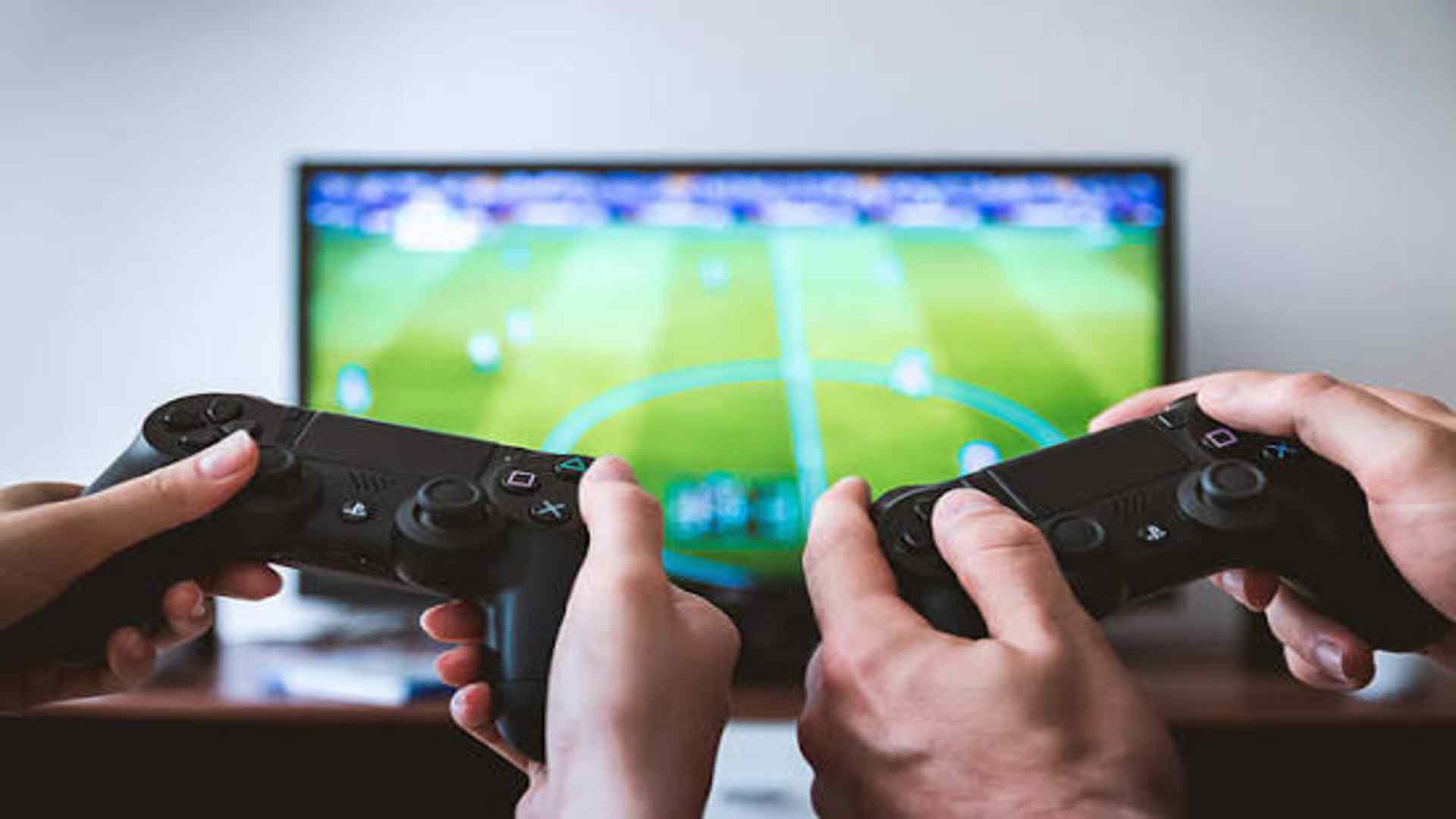
Mobile gaming has evolved significantly, allowing players to enjoy console-quality titles directly on their smartphones. To elevate this experience, many gamers prefer using a physical gamepad instead of relying on standard touchscreen controls. Connecting a PlayStation 4 DualShock 4 controller to your mobile device via Bluetooth is a straightforward process that instantly enhances responsiveness and precision.
Preparing Your DualShock 4 Controller
Before initiating the wireless connection, ensure your PlayStation 4 controller is disconnected from the console. If the console is nearby, it may automatically turn on and override the pairing sequence. You should also verify that the gamepad has sufficient battery charge to maintain a stable connection throughout the setup.To begin the wireless synchronization, press and hold the Share button and the PS button simultaneously. Continue holding both inputs for a few seconds until the light bar on the back begins to flash rapidly in white. This distinct blinking pattern indicates that the hardware has entered its official pairing mode.
Enabling Bluetooth on Android Devices
If you are utilizing an Android smartphone, navigate directly to the system settings application from your home screen. Open the connected devices menu and tap on the option to pair a new wireless accessory. Ensure your system Bluetooth toggle is switched to the active position so it can actively scan the surrounding environment.
The phone will display a list of available nearby hardware within a few moments. Look for an entry labeled Wireless Controller or DualShock 4 and select it to begin the authentication process. Once the system finishes loading, the blinking light bar on your gamepad will turn into a solid color to confirm a successful link.
Connecting to iOS Smartphones
For iPhone users, the setup is equally efficient and relies on the built-in Bluetooth framework. Open the settings application on your iOS device and select the dedicated Bluetooth submenu. Toggle the feature on and wait for the smartphone to populate the list of discoverable hardware choices.
The designated PlayStation accessory should appear at the bottom of the screen under the list of other devices. Tap on the controller name to prompt the operating system to establish a secure handshake. The light bar will transition to a steady pink or blue hue, signaling that you are ready to launch compatible mobile applications.
Optimizing Gameplay and Troubleshooting Links
Many modern mobile titles automatically detect the newly mapped inputs and adjust the user interface without manual configuration. However, if you experience sudden input lag, check for potential signal interference from nearby wireless machinery. If the system fails to recognize the input, resetting the controller via the small button on the back usually resolves the synchronization issue.
When you finish your gaming session, remember to turn off the accessory to preserve its remaining battery capacity. You can easily disconnect the gamepad by toggling the Bluetooth switch off on your mobile device or by holding the PS button down for roughly ten seconds. Understanding these simple maintenance steps ensures your mobile setup remains reliable for future play sessions.